
Sentinel for Windows
How to install the Sentinel Windows app, connect it, approve this PC, and add the browser extension (in preview)
Sentinel for Windows is the SUPERWISE® Sentinel app for Windows 10 and 11: one installer runs a local Sentinel gateway as a background service, points your AI tools at it, and adds a tray icon that shows whether you're protected. It needs no admin rights, and there's no Docker, no Python, and no secret to copy.
It covers the coding agents on the PC — Claude Code, the Codex CLI, and Antigravity — plus Claude Desktop and the apps you build, and with its browser extension (in preview), ChatGPT and Claude in Chrome and Edge. The ChatGPT and Gemini desktop apps are coming soon.
What do I need?
- Windows 10 or 11.
- A SUPERWISE account. Sign up first, or create a free account when the app asks you to sign in.
Install and connect
- Download the installer. Get SuperwiseSentinel.msi from the Sentinel for Windows download page, or use the direct link to the installer. It installs just for you, with no admin rights needed.
- Install and open it. Run the MSI, then open SUPERWISE Sentinel from the Start menu.
- Connect. Click Connect. Your browser opens once.
Approve this PC
In the browser, sign in or create your free account, then approve this PC. You'll see Access Approved. There's no API secret to copy: the app enrolls the device with your account.
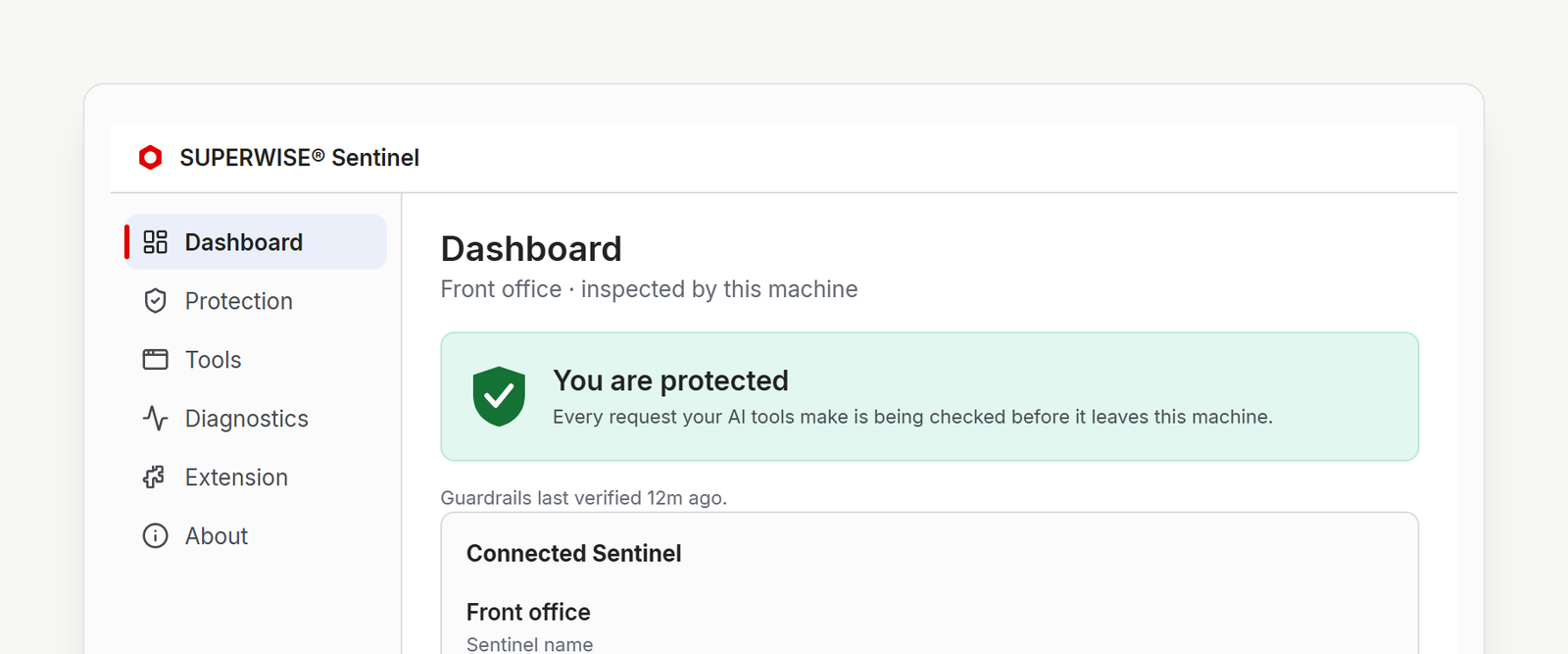
Back in the app, the Dashboard shows a green You are protected banner (every request your AI tools make is checked before it leaves this machine) and your connected Sentinel. Your AI tools now route through the local gateway. Open a new terminal and run a tool like Claude Code: its traffic is inspected and guardrails are applied before anything leaves the machine.
Your new gateway also appears in the Sentinels list in the SUPERWISE app, where an admin can manage its guardrails like any other Sentinel.
Add the browser extension (optional)
For ChatGPT and Claude in a browser tab, add the Sentinel extension to Chrome or Edge. In the app, open the Extension tab and follow its steps; it takes about a minute. The extension is in preview, and it relies on the Windows app for its gateway connection.
The app
The app lives in the notification-area tray. Closing the window hides it there and leaves protection running. Its tabs:
- Dashboard: whether you're protected, the active Sentinel's name, when it connected, and this device's identity. Run check re-tests the connection.
- Protection: pause or resume protection, and see which guardrails are being enforced. While protection is paused, AI tools you start are not routed through Sentinel, so their prompts are not checked at all. Tools that were already running stay routed through Sentinel until they restart.
- Tools: the AI tools detected on the machine (Claude Code, Codex, Claude Desktop, and more) and whether Sentinel is enforcing for each.
- Diagnostics: status details you can copy or download, plus a self-test of the local gateway.
- Extension: download the browser extension (in preview) and follow the steps to add it to Chrome or Edge.
- About: version information, and links to the documentation and Terms of Service.
Uninstall
Uninstall SUPERWISE Sentinel from Windows Settings → Apps → Installed apps (or Control Panel). Removing the product takes the service, the app, and the AI-tool settings with it.
The browser extension is removed separately: on chrome://extensions (or edge://extensions), click Remove on the extension's card. Removing only the extension leaves the Windows app and its protection of your other tools in place.
FAQ
Does Sentinel for Windows need admin rights?
No. The installer, SuperwiseSentinel.msi, installs just for you with no admin rights.
What does it change on the PC?
It adds a Windows service, SentinelGatewaySvc, that runs the local gateway; the Sentinel app in the notification area; the sentinel command-line tool; and settings that point AI tools such as Claude Code at the local gateway. It does not block the network.
Which AI tools does it cover?
Claude Code, the Codex CLI, Antigravity, and Claude Desktop on the PC, plus the apps you build, and with the browser extension (preview), ChatGPT and Claude in Chrome and Edge. The ChatGPT and Gemini desktop apps are coming soon. Gemini, Copilot, Grok, Perplexity, and DeepSeek in the browser are in development. See What is Sentinel? for the full coverage table.
How do I remove it?
Uninstall the product from Windows Settings → Apps, which removes the service, the app, and the AI-tool settings together. Remove the browser extension from chrome://extensions or edge://extensions. See Uninstall.
Is it free to try?
Yes. Sentinel starts with a free trial, no credit card, with the same use rights as the paid plans. See pricing for current plans and pricing.
See also
- What is Sentinel?: what Sentinel does and the tools it covers.
- Install on macOS and Linux (CLI): the terminal path, also available on Windows.
- Manage guardrails: choose what each Sentinel catches and what it does on a match.
- Data privacy: what stays on the PC and what reaches SUPERWISE.
Updated 14 days ago